Inside Anki
Tools → Add-ons → Get Add-ons
Complete this setup once, and the extension can connect your Anki review to the exact Netflix or YouTube subtitle line stored in each card.
Video Flashcards reviews cards through desktop Anki. Install Anki first, then keep Anki open while you use the extension.
AnkiConnect lets Video Flashcards communicate with Anki locally.
In Anki, open Tools → Add-ons → Get Add-ons,
enter the add-on code 2055492159, install it, and restart Anki.
Tools → Add-ons → Get Add-ons
2055492159
Restart Anki
Add the Chrome extension, open Netflix or YouTube, and click the extension icon to open the side panel.
Create a note type in Anki with these fields in this exact order: Front, Back, Start, End, Index, Lang, VideoUrl. Video Flashcards uses them to display the text, find the video, jump to the correct subtitle line, and switch languages.
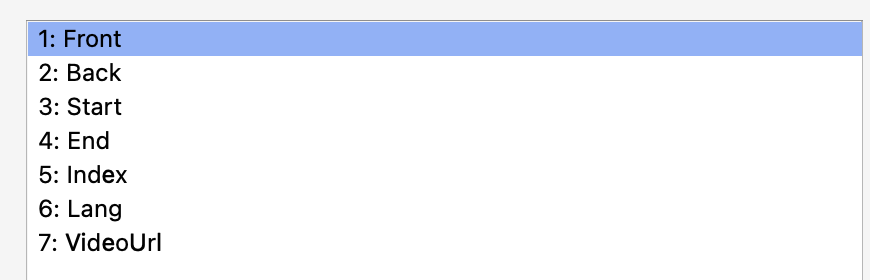
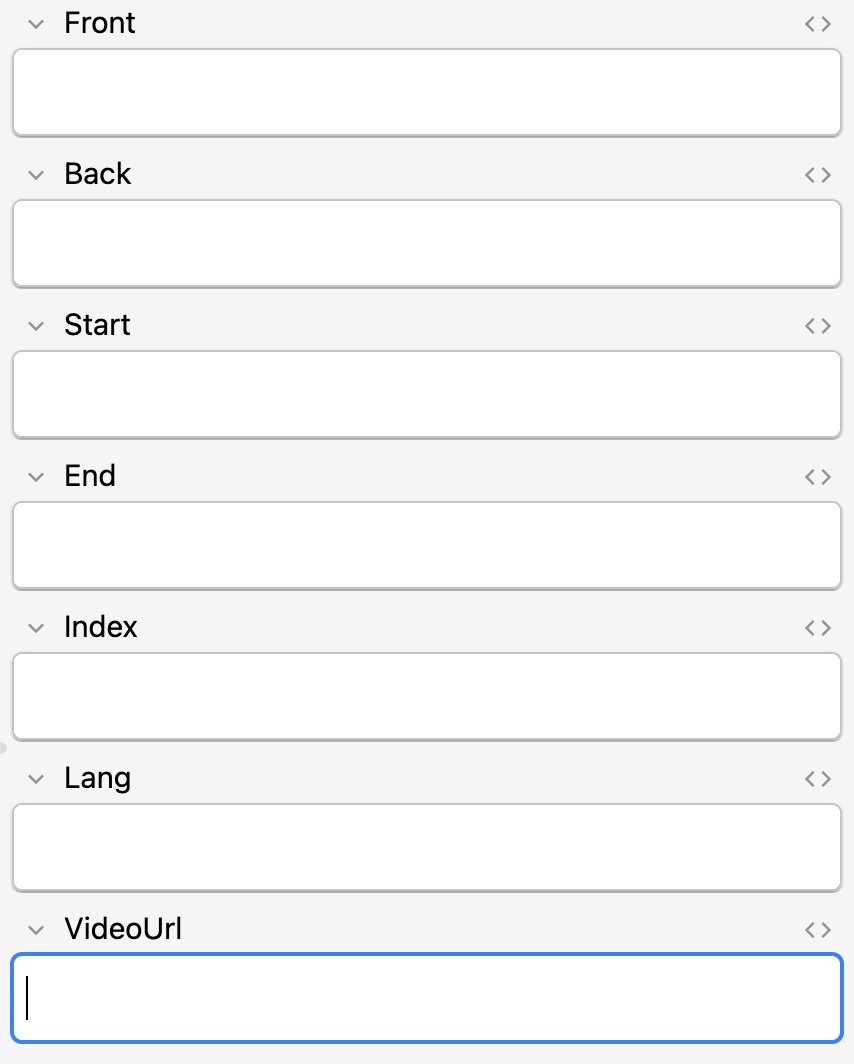
The subtitle line shown on the card and in the Video Flashcards side panel.
Optional. The export leaves it blank so you can add translation or notes later.
Timing values used to replay the exact subtitle line.
The subtitle line position inside the exported subtitle list.
The language marker used by the extension when it applies saved language behavior.
The Netflix or YouTube URL that connects the card to the correct video.
Open the Video Flashcards side panel on a supported video, choose the audio and subtitle setup you want, click Apply selected, then use Export for Anki cards. The extension creates a text file prepared for Anki import.
In Anki, use File → Import, select the exported text file, choose your Video Flashcards note type, and map the imported columns to: Front, Back, Start, End, Index, Lang, VideoUrl.
Join the Video Flashcards Telegram channel for setup notes, release updates, and important compatibility announcements.
Open the matching video, open Video Flashcards, choose the imported deck, and review your cards. The extension can jump to the stored subtitle line using the card timing and video URL.