Netflix + YouTube + Anki

Study from video scenes, not isolated flashcards.

Video Flashcards brings your Anki review directly beside the video. Replay exact subtitle lines, switch languages, and keep the scene that made the sentence worth learning.
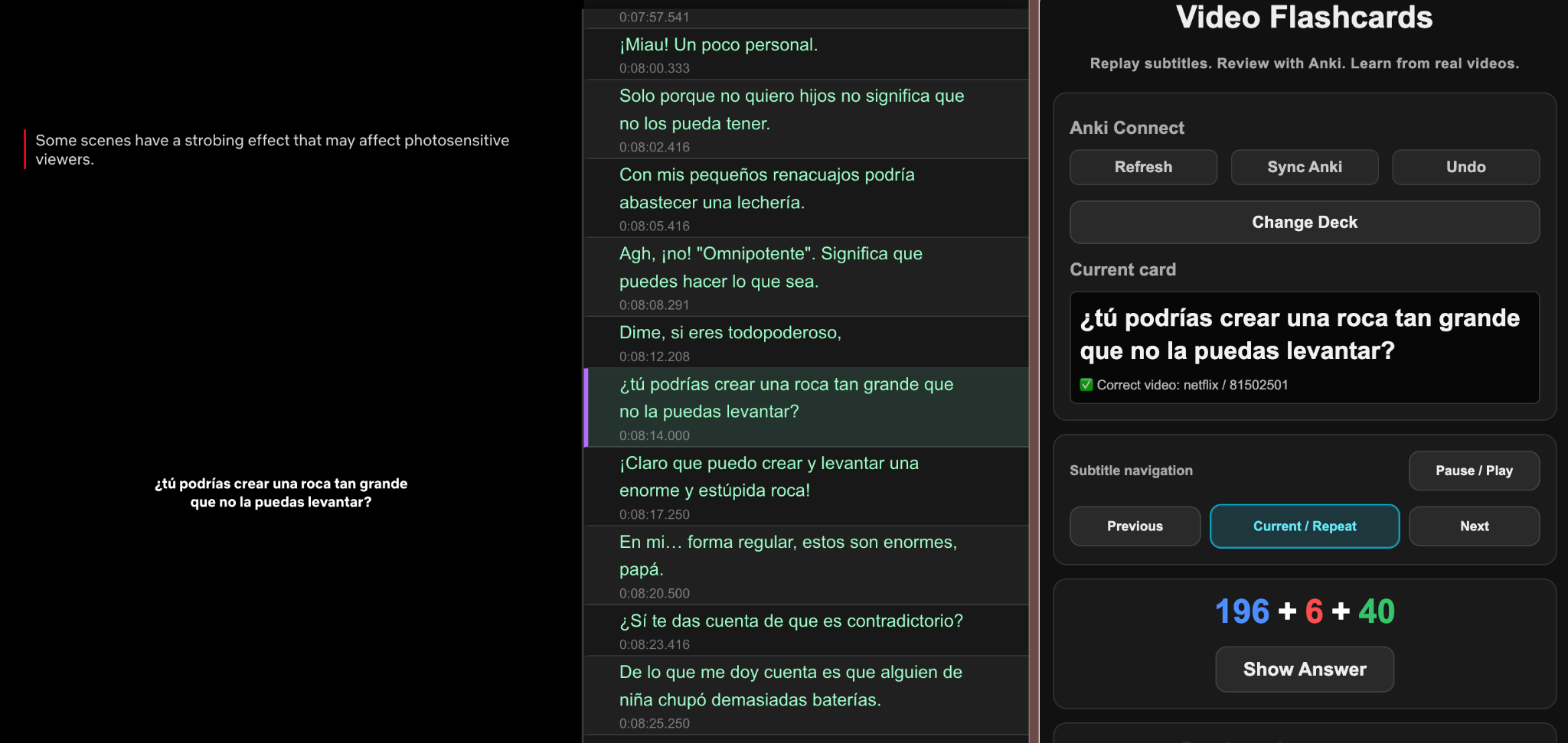
Standalone subtitle panel Language switching Anki review side panel
Video Flashcards standalone mode beside a Netflix video, with a subtitle panel and Anki review sidebar.
Standalone mode: subtitle navigation, current Anki card, and review controls beside the video.
Built for your existing study stack
N
Netflix Video study support
YouTube Subtitle review support
Anki Review workflow
Core product

Standalone first.

Video Flashcards works on its own. It adds a subtitle panel beside the video, lets you review Anki cards in a side panel, and keeps playback control tied to the exact card you are studying.

Replay: current, previous, and next subtitle lines.
Control: switch audio and subtitles without leaving the video.
Review: answer Anki cards, undo, sync, and change decks.
Export: prepare subtitle lines for Anki card creation.
Standalone subtitle panel
Video Flashcards standalone subtitle panel beside a Netflix video and Anki side panel.
The core product flow works without Language Reactor.
Getting started

From installation to your first working card.

Video Flashcards works best when the setup is done once in the right order: install Anki, add AnkiConnect, export subtitle lines for Anki cards, import them with the required fields, and start reviewing beside the video.

Open setup guide
1 Install Anki Desktop
2 Add AnkiConnect
3 Install Video Flashcards
4 Create the required Anki fields
5 Export for Anki cards
6 Import, review, and replay lines
How it works

One session, three simple actions.

1

Open the video

Use a Netflix or YouTube title connected to your subtitle-backed cards.

2

Review the card

The side panel shows the current card and gives you Anki review controls.

3

Replay the scene

Jump directly to the subtitle line that belongs to the current card.

Optional compatibility

Already use Language Reactor?

Video Flashcards can also work alongside Language Reactor for users who already rely on that subtitle workflow. It is a supported companion option, not the core dependency of the product.
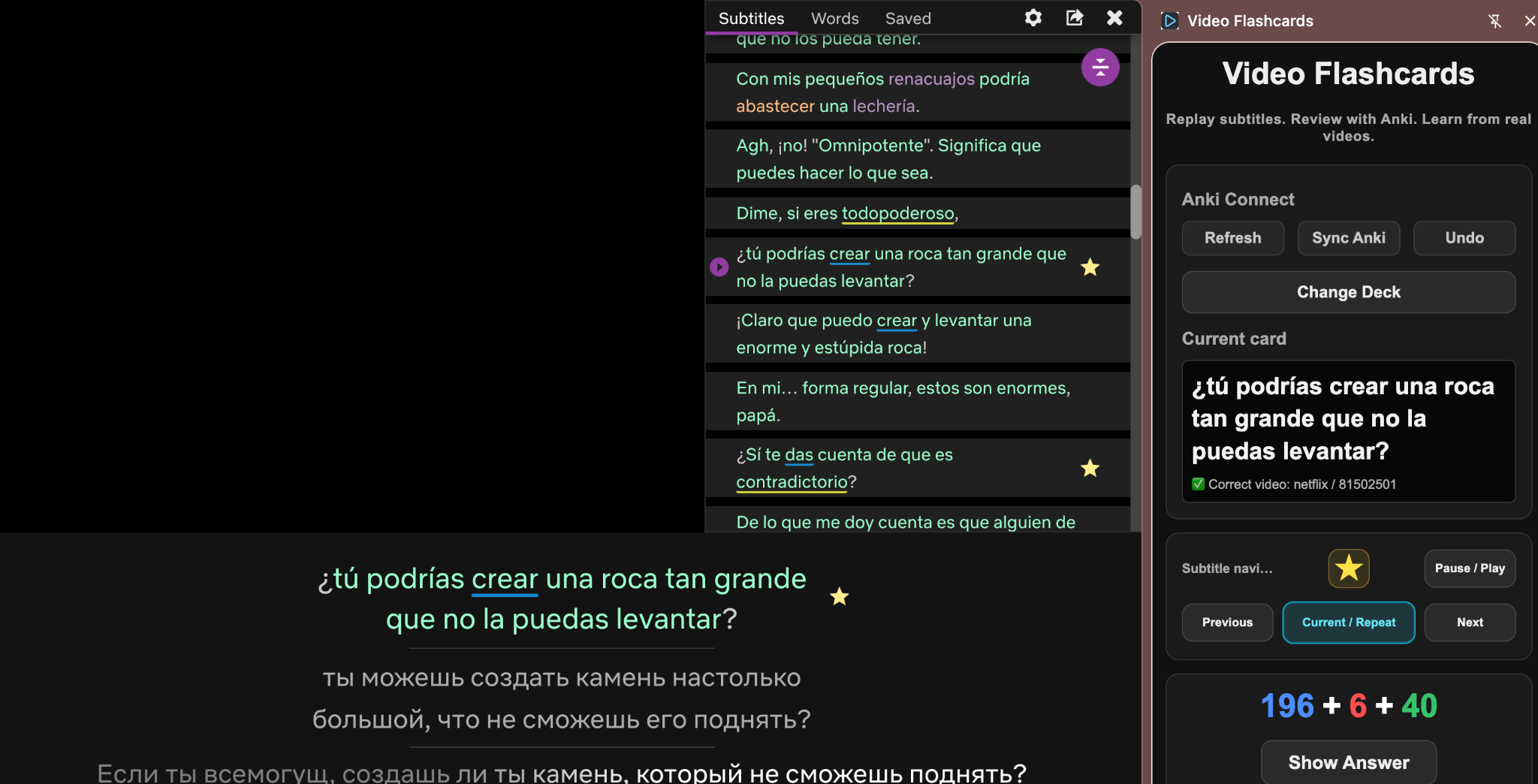
Language Reactor is a third-party extension and is not affiliated with Video Flashcards.
Works alongside Language Reactor Optional
Video Flashcards side panel working alongside Language Reactor on a Netflix video.
For users who already use Language Reactor, Video Flashcards can fit into that workflow too.
What users get

Designed around the real study bottleneck.

Exact subtitle replay

Card review stays attached to the exact video moment that generated it.

Anki beside video

Review cards without jumping between browser tabs and desktop windows.

🌐

Language bookmarks

Save useful audio + subtitle combinations and switch them quickly.

Export for Anki cards

Prepare subtitle lines for your Anki card creation workflow.

FAQ

Clear answers before install.

Does it work without Language Reactor?

Yes. Standalone mode is the product’s primary workflow.

Can I use it with Language Reactor?

Yes. Video Flashcards can operate alongside it for users who already have it installed.

Do I need Anki?

Yes. The extension is built around reviewing Anki cards while video context remains open.

Which sites are supported?

Netflix and YouTube are supported in the current release flow.

Keep the scene. Keep the sentence. Keep reviewing.

Video Flashcards connects subtitle study with the video moment that made the line memorable.